
RTSP URL
Regardless of the software used, it is necessary to specify the RSTP video address to capture the video stream from a camera.
The RTSP URL must have at least the IP address of the camera and a format. For example: rtsp://192.168.14.2/avc
You can also include more options like this: rtsp://192.168.14.2/avc/ch1&?cbr=0&quant=80&frate=30&gop=1
Video formats
Each FLIR camera model has different video formats: consult the camera's user manual to confirm the video formats available on your camera.

URL parameters
The available parameters are listed below. These parameters are not valid for the MJLS format, nor for A3xx camera models.
- {ch0|ch1} 0=IR(default), 1=visible
- frate {framerate in Hz}
- overlay {on|off}
- cbr {constant bit rate in bits per second, 0=variable bit rate}
- quant {quality level -1 to 100 where 100 is the best quality, valid only if cbr=0}
- gop {group of images, gop is the sum of a keyframe + intended frames, i.e. the number of P frames following a frame I}
Instructions for using VLC Media Player
The following examples were made with a FLIR AX8 and VLC Player version 2.2.1. You can download the software free of charge at https://www.videolan.org/.
Step 1: Set the IP address of the camera
Before you can connect to the camera, you must configure its IP address to be on the same subnet as your computer.
Most of the cameras in this answer can be configured using FLIR IP Config.
See this link if you are not familiar with IP networks: IP Addressing Basics.
Step 2: Video transmission configuration
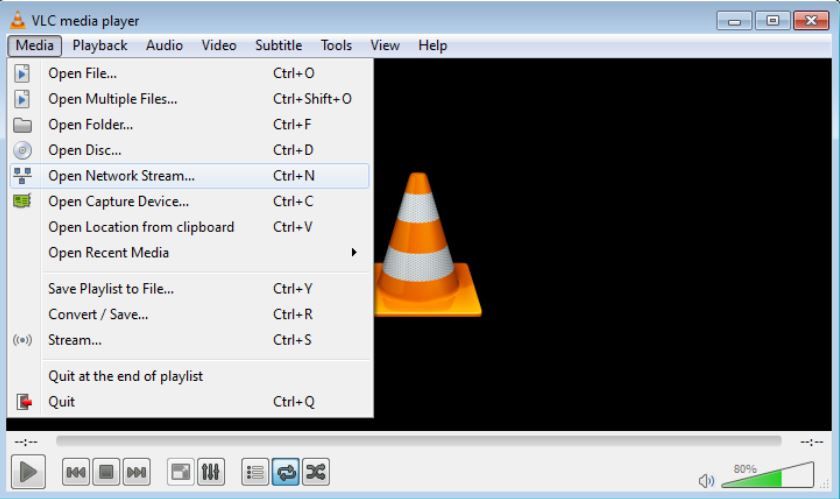
Open VLC Media Player, click on the "Media" tab and then on "Open Network Stream...".

Step 3: Connect to the camera stream
With IP address 169.254.79.239. The AX8 supports three different video formats: AVC (h.264), MPEG4 and MJPEG. This example shows how to connect to the AVC format. Type the address of the video stream (rtsp://169.254.79.239/avc) and click Play.

The video will be shown.

Step 4: Record a live video
The recording commands appear on the Playback tab. To record the video, click Record. To stop recording, click Stop.

Los vídeos grabados se guardan automáticamente en C:\Usuario\<su_usuario>\Videos. Puede acceder al vídeo yendo a la dirección de la carpeta o abriendo la carpeta Bibliotecas y luego abriendo Vídeos.
There are also other ways to access the record button. Some examples are:
Right-clicking on the video.

Step 5: Save the recording to a file
This is easily achieved with the VLC media player which can be downloaded from here.
Once VLC is installed and the camera is connected to the computer. Click on Media and click on Open Network Stream...
Choose the Network tab and enter RTSP:IP address of the camera. Then click Convert in the scroll bar.

Browse to the desired folder and create a file. This is the file that will contain your RTSP video.


Now just let the camera run and once you no longer want to record a video, press stop and the video will be saved to your hard drive.
If you have any doubts or questions, please contact us.